 Megamind Apps
Set both thread sequences
Choose colors from the palette or enter a six-digit hex value. Set up to eight entries each for the lengthwise warp and the crosswise weft.
Sketch a swatch before you choose the yarn.
Try warp and weft color sequences against plain, twill, basket, or custom crossings. Watch the repeat change as you work, save variants on your device, and export the tile you want to keep.
Android 7.0 and later · Works offline
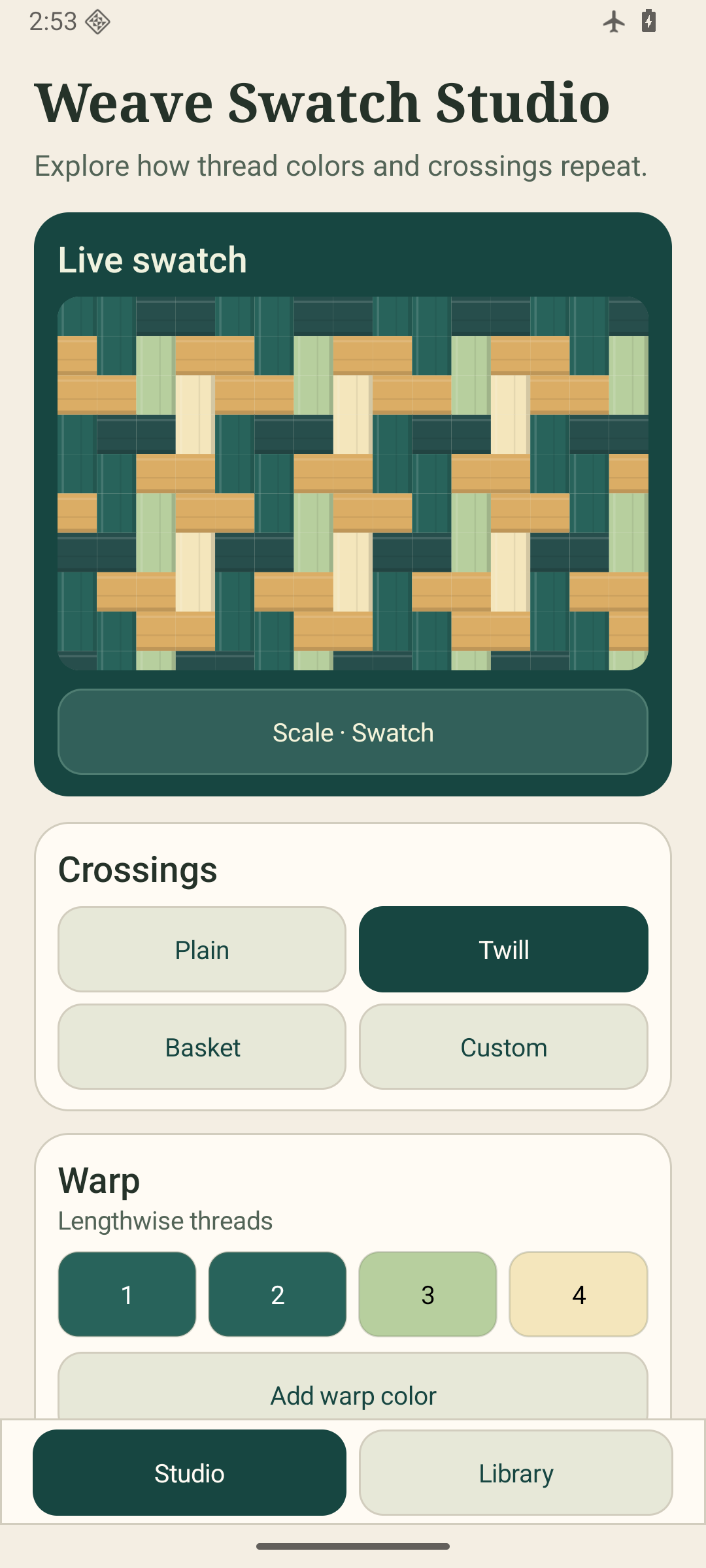
Choose colors from the palette or enter a six-digit hex value. Set up to eight entries each for the lengthwise warp and the crosswise weft.
Try plain, diagonal twill and basket crossings, or decide which thread shows at each cell in a four-by-four custom grid. Use three preview scales to inspect the result.
Keep named designs in your library and reopen a saved swatch as a separate draft. Export a seamless PNG repeat to a location you choose in Android’s file picker.
Tell us your Android version and what happened when you ran into a problem.
Email Megamind Apps